Creating a Hyperlink:
The following steps will guide you in creating a hyperlink:
1. Create a new document in Flash MX by going to File | New. A new, blank Flash MX movie will be displayed.
2. From the Tools panel, click the Oval Tool and draw a circle in your drawing area. Once the circle has been drawn, select the circle with your mouse pointer.
[ circle after having been selected ]
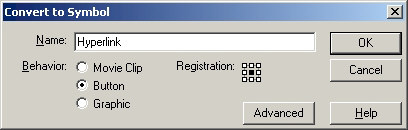
3. Once the circle has been selected, press F8 or go to Insert | Convert to Symbol. The Convert to Symbol dialog box appears. In the Name field, give this circle a name. I will call this circle "Hyperlink". In the Behavior section, select the Button option. Your Convert to Symbol dialog box should look like the following image:
[ circle after having been selected ]
4. Press OK to close the Convert to Symbol dialog box. The circle is now a button. Right click on the circle and select Actions. The Actions panel will expand for you to input actions.
5. From the Actions panel, click on the plus symbol ( + ) found near the middle of the panel. Once you click the plus symbol, go to Actions | Browser/Network | getURL.
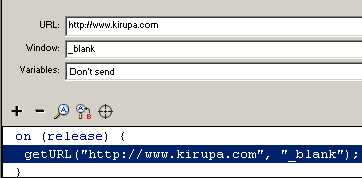
6. You will see the URL, Window, and Variables field displayed in your Actions panel. In the URL field enter:
http://www.kirupa.com. Click the Window field/drop-down menu and select _blank. Your Actions panel will look like the following image:
[ the action panel after filling in the fields ]
7. Save the file and preview the animation in your browser by going to File | Publish Preview | HTML. Click on the button, and you will see a new browser window open.
Window States
You may have noticed, that when the button was clicked, it opened a page in a new window. Sometimes you may not want every link to open in a new window. Maybe you want the link to open in the current window. That is where the Window field of the button Actions plays a large role.
In this tutorial, you clicked the Window drop-down menu/field and picked _blank from one of four choices. To make it easier for you understand the Window states, I have provided a brief explanation about each selection in Window drop-down menu:
* _self
Loads the link in the current page or the current page in a Frame. This is the default selection used by Flash to open any link.
* _blank
Loads the link in a separate browser window. You selected _blank in the tutorial above.
* _parent
Loads the link into the frameset file of a frame. The frameset file controls all the frames, and setting the window to _parent will eliminate frames in the subsequent links. As you may have seen, often times, links get loaded inside frames unintentionally. Setting _parent will solve the misuse of frames!
* _top
Loads the link on the top frame.