BTC USD 60,762.4 Gold USD 4,328.60
Time now: Jun 1, 12:00 AM

Easy X-Ray Typography in Photoshop

soybean

CG Hardcore Club
gemgem
Messages
63,243
Paid Membership
Joined
Feb 15, 2009
Messages
63,243
Reaction score
4,135
Points
661
A few years ago I saw an image of Homer Simpson's head in x-ray. I really like that effect and always wanted to try something like that in Photoshop. I didn't know exactly what to do but then I checked online and saw that some people did text effects with the x-ray type of image. That was indeed a nice idea to try.

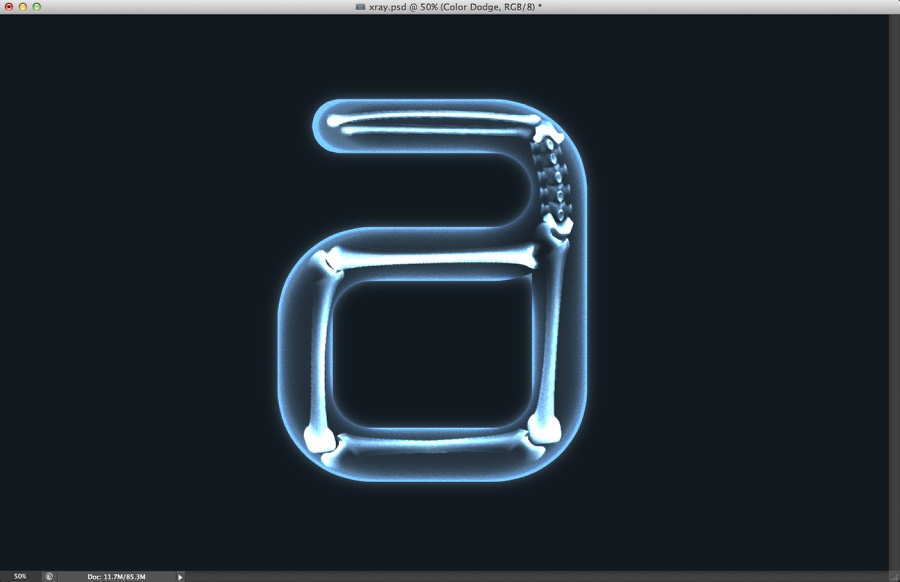
So in this tutorial, I will show you how to create a simple x-ray effect of a letter, in this case, the Abduzeedo logo A. The whole process is quite simple but it will require a couple of hours to pull it off.
 

Step 1​


Open Photoshop and create a new document. I am using 2560x1600. Also, fill the background layer with #11171c for the color.


X-Ray Typography in Photoshop
 

Step 3​

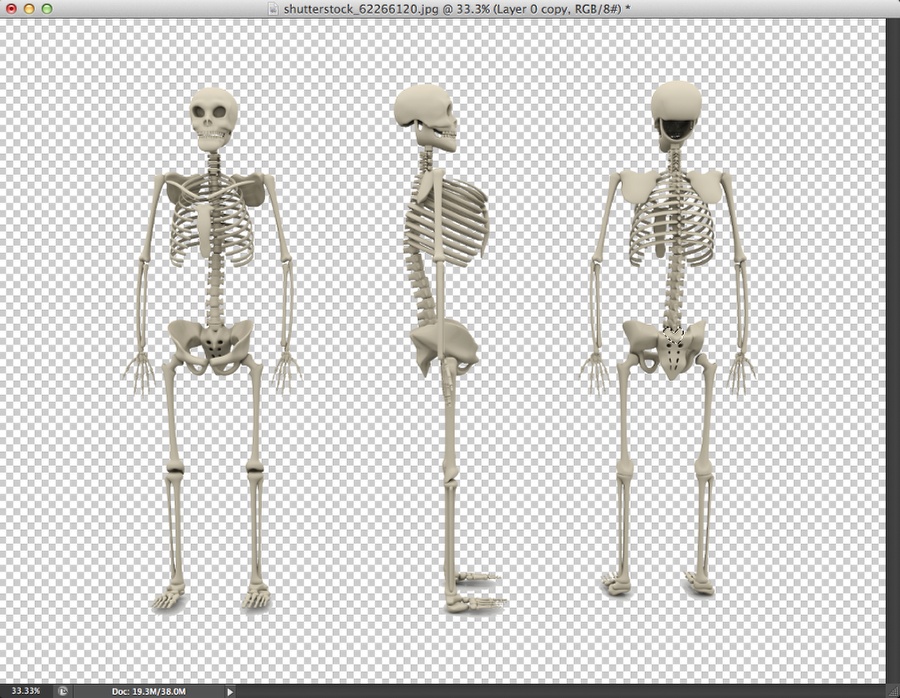
Time to find some images of bones. I found one at Shutterstock and you can find it at by using the reference number 62266120.

X-Ray Typography in Photoshop
 

Step 4​

Copy bones from the image and paste in the x-ray document. To make the bones connect you can go to Edit>Transform>Warp and Edit>Puppet Warp.

Step_4.jpg
 

Step 5​

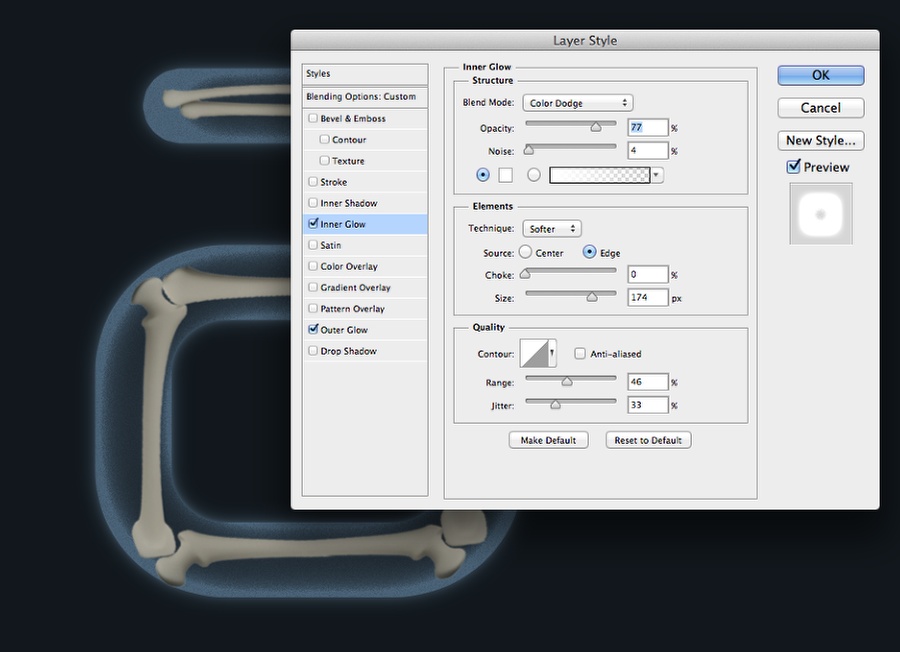
Select the letter layer and then go to Layer>Layer Style>Inner Glow. Use Color Dodge for the Blend Mode, 80% Opacity, 5% Noise, Edge for the Source, 175 for the Size, 45% for the Range, 35% Jitter.

X-Ray Typography in Photoshop
 

Step 6​

Select Outer Glow. Use Color Dodge at 80% with white for the color. Also, change the Size to 55% and the Range to 60%.

Step_6.jpg
 

Step 7​

Select all layers used to create the skeleton and merge them into one. Change the Blend Mode of the Color Dodge, then go to Image>Adjustment>Levels. Use the image below for reference of Inputs.

Step_7.jpg
 

Step 9​

Select all layers and duplicate them. Merge the new duplicated layers into one and change this new layer's Blend Mode to Color Dodge.

X-Ray Typography in Photoshop
 

Step 10​

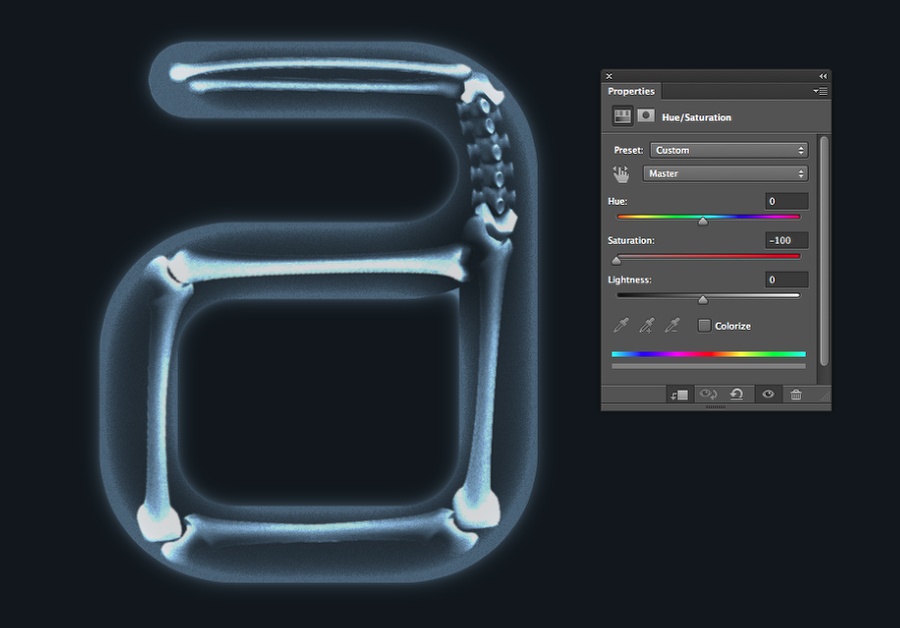
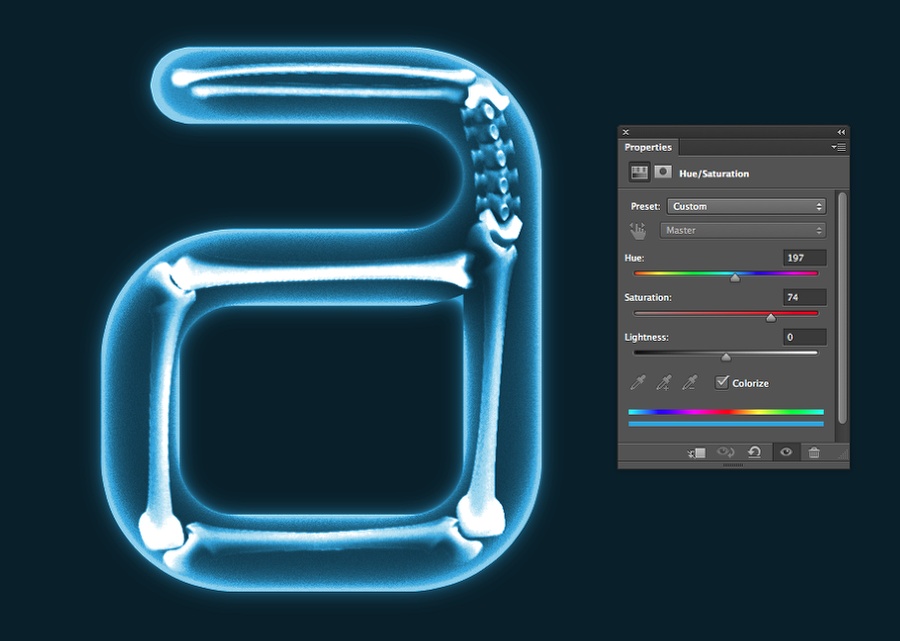
Go to Layer>New Adjustment Layer>Hue and Saturation. Use 197 for the Hue, 74 for the Saturation and 0 for the Lightness. Mark Colorize as well.

X-Ray Typography in Photoshop
 
Back
Top
Log in Register