BTC USD 80,454.8 Gold USD 4,378.12
Time now: Jun 1, 12:00 AM

Microsoft Excel Tutorial for Beginners: Lesson 3

  • Enter “ja” and click on “OK” button
  • You should be able to see only the results for Jane and James.
050215_0734_GettingStar19.png
 

Group and Ungroup​

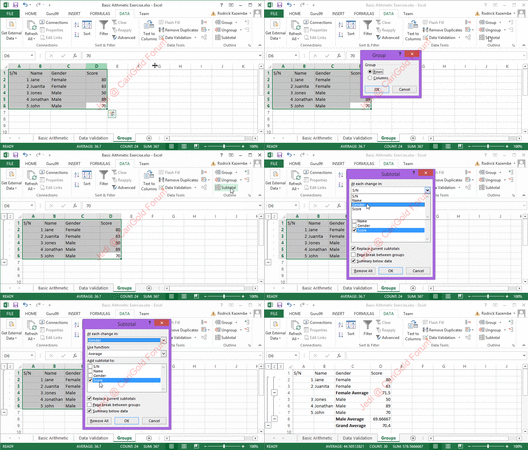
Groups allow us to view easily and hide unnecessary details from either columns or rows. In addition to that, we can also use groups to analyse data that belongs to a common category. Let’s illustrate this with an example. We will use the student scores example above.


grouping_demo.gif
 

Attachments

  • Right click on the score and select insert column. Name the name column gender.
  • Change James to Juanita. Put female for Janet and Juanita. Put male for the rest of the students. Your sheet should look as follows.
050215_0734_GettingStar20.png
 
We will now group the females together and display their average score and do the same for the males.

  • Click on DATA tab on the ribbon
  • Select all the columns and rows with data
  • Click on Group drop down button as shown in the image below
050215_0734_GettingStar21.png
 
Back
Top
Log in Register