Xploit Machine
CG Hardcore Club

- Messages
- 73,788
Top Poster #6

- Joined
- Nov 23, 2012
- Messages
- 73,788
- Reaction score
- 7,754
- Points
- 916
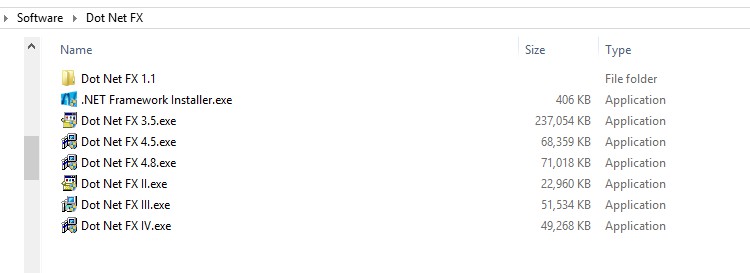
A guide to installing .NET Framework 3.5 (includes .NET 2.0 and 3.0) in Windows 8 & 10.
Most of us face trouble in installing .NET Framework
[Solution 1] Enable .NET Framework 3.5 in Programs and Features
Open the Control Panel.
Open Programs and click Programs and Features.
Open Turn Windows features on or off.
Tick the option .NET Framework 3.5 (includes .NET 2.0 and 3.0) and click OK to start the installation.
Restart the computer to finish the installation.
[Solution 2] Enable .NET Framework 3.5 with DISM
Download the Windows 8 or 10 installation files and burn them to a DVD or USB drive.
Open the Command Prompt (Admin) or PowerShell (Admin).
Execute DISM /Online /Enable-Feature /FeatureName:NetFx3 /All /LimitAccess /Source:DRIVE:\sources\sxs
Replace DRIVE with the letter of the DVD or USB drive that contains the Windows installation files.
Restart the computer to finish the installation.
Screenshot of Successful Installation

Most of us face trouble in installing .NET Framework
[Solution 1] Enable .NET Framework 3.5 in Programs and Features
Open the Control Panel.
Open Programs and click Programs and Features.
Open Turn Windows features on or off.
Tick the option .NET Framework 3.5 (includes .NET 2.0 and 3.0) and click OK to start the installation.
Restart the computer to finish the installation.
[Solution 2] Enable .NET Framework 3.5 with DISM
Download the Windows 8 or 10 installation files and burn them to a DVD or USB drive.
Open the Command Prompt (Admin) or PowerShell (Admin).
Execute DISM /Online /Enable-Feature /FeatureName:NetFx3 /All /LimitAccess /Source:DRIVE:\sources\sxs
Replace DRIVE with the letter of the DVD or USB drive that contains the Windows installation files.
Restart the computer to finish the installation.
Screenshot of Successful Installation