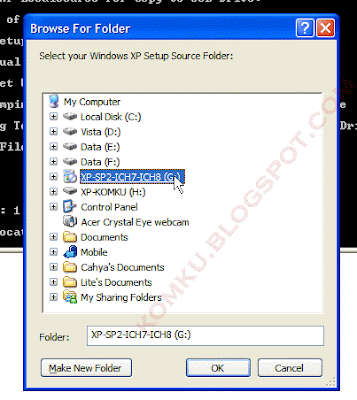
the result... "XP Setup Source Path" changed to
G:\ (yours may be different)
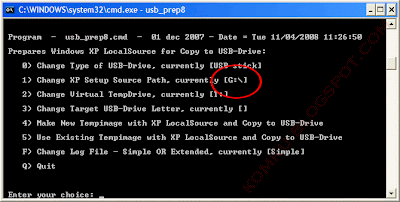
now for point 2, if letter
T is currently assigned to a drive in your computer, you must change it.... if not, leave it as it is
how to change it?
type
2 and press Enter...
 "Enter Available Virtual DriveLetter"
for example you doesn't have drive
S
so you type
S and press Enter
back to usb_prep8 welcome screen...
now type
3 and press Enter...
 "Please give Target USB-Drive Letter e.g type U" Enter Target USB-Drive Letter:
because my Flash drive letter is
H
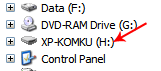
so, type
H and press Enter...
after back to usb_prep8 welcome screen...
now type
4 and press Enter to make new temporary image with XP LocalSource and copy it to USB Flash Drive
please wait a few seconds..
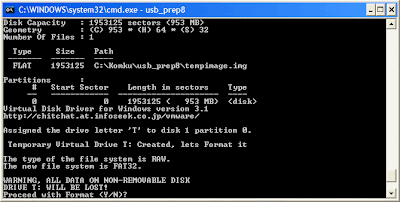
"WARNING, ALL DATA ON NON-REMOVABLE DISK DRIVE T: WILL BE LOST! Proceed with Format (Y/N)?"
type
Y and press Enter
please wait....
when format virtual disk complete, press any key to continue...
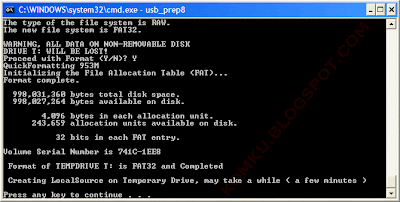
please wait... making of LocalSource folder is in progress...
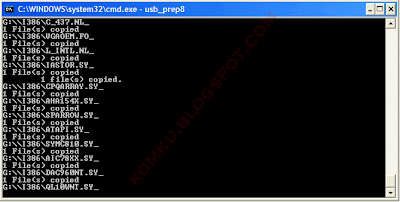
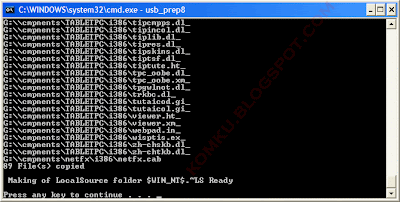
when
"Making of LocalSource folder $WIN_NT$.~LS Ready"
Press any key to continue...
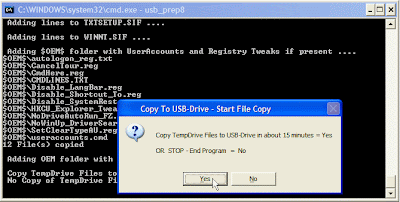
 "Copy TempDrive Files to USB-Drive in about 15 minutes = Yes OR STOP = End Program = No"
Click
Yes, and wait...
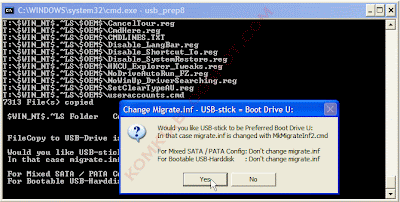
 "Would you like USB-stick to be preferred Boot Drive U: bla... bla..."
Click
Yes
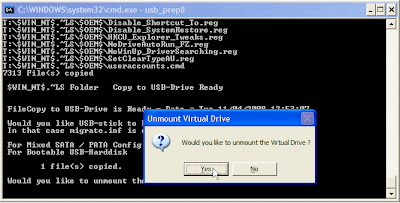
 "Would you like to unmount the Virtual Drive ?"
Click
Yes, wait a few seconds, and press any key....
press any key again to close usb_prep8...
Now, your USB Flash Drive is ready...
step 9:
Now, insert your USB Flash Drive/Flash Disk/Thumb Drive to your notebook (e.g
Acer Aspire One)
go to BIOS and make
USB HDD (or
USB ZIP in some other machine) as primary boot device....
then boot form your USB Flash Drive....
and select
"TXT Mode Setup Windows XP, Never unplug USB-Drive Until After Logon"
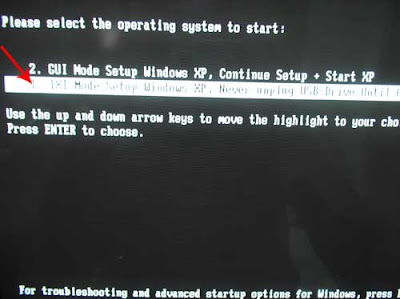
After Hard Disk detected, delete all partition, create single partition... and install Windows XP on that partition...
and wait...
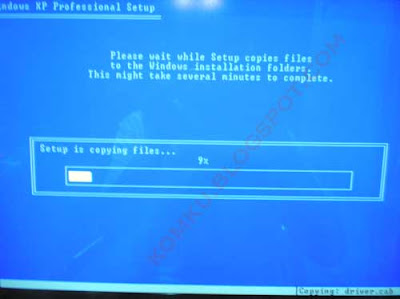
once text mode setup is complete, computer will restart....
this time select
"GUI Mode setup Windows XP, Continue Setup + Start XP"
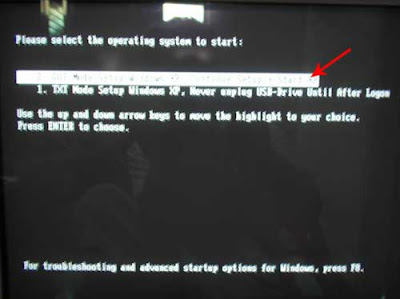
Continue Windows XP setup.... and Done!
Windows XP Installed....
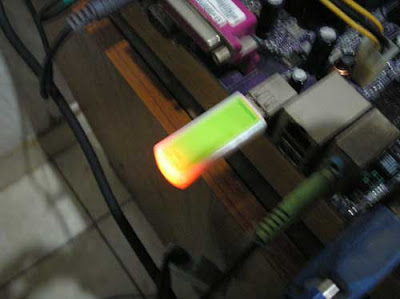
Remember, you can use this tutorial to install Windows XP on all other computers.. not just Aspire One and Asus EEE-PC....
credit to
http://komku.blogspot.com


 (
(

