
srekcah
Fun Poster
- Messages
- 481
- Joined
- Dec 9, 2009
- Messages
- 481
- Reaction score
- 35
- Points
- 20
Compatibility mode allows a older program written for an earlier versions of Windows to possibly run in Windows 7. You can also use Compatibility mode to always have a program to Run as an administrator.
If changing the Compatibility settings does not fix the problem, go to the program manufacturer's website to see if there is an update for the program.
To see if your software is compatible with Windows 7, check it here: Windows 7 Compatibility Center home
Do not use Compatibility mode on older antivirus programs, disk utilities, or other system programs because it might cause data loss or create a security risk.
OPTION ONE
1. Right click on the program's shortcut, .exe file, or installation program.
2. Click on Properties.
3. Click on the Compatibility tab. (see screenshot below)
NOTE: If the Compatiblity options are grayed out, then it is a 64 bit program and cannot be changed.
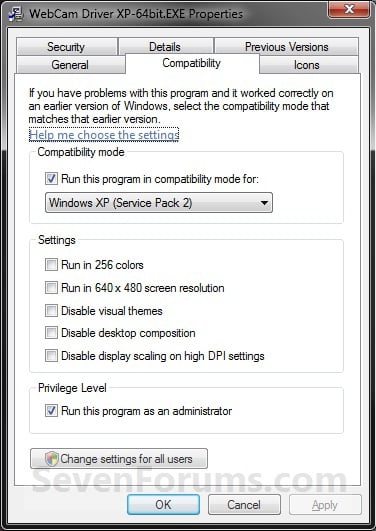
4. To Run a Program in Compatibility Mode:
NOTE: Runs the program using settings from a previous version of Windows. Try this setting if you know the program is designed for (or worked in) a specific previous version of Windows.
A) Check the Run this program in compatibility mode for box. (see screenshot below)
B) Click on the drop down menu arrow and select which version of Windows the program was made for. (see screenshot below)
NOTE: Always pick the latest Windows version the program was written for to have a better chance of it running properly in Windows 7.
MSI files (right screenshot below) will only have the Previous version of Windows option available for it. This option will allow Windows 7 to automatically use the previous version compatibility mode it thinks is best for the MSI file to run properly as. You will not be able to do steps 5 and 6 below.

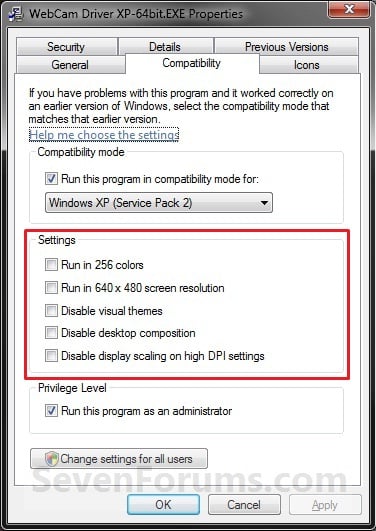
5. To Change the Settings for a Program:
A) Check or uncheck the settings you want for the program. (see screenshot below)
NOTE: See the table below the screenshot for a description of each setting.
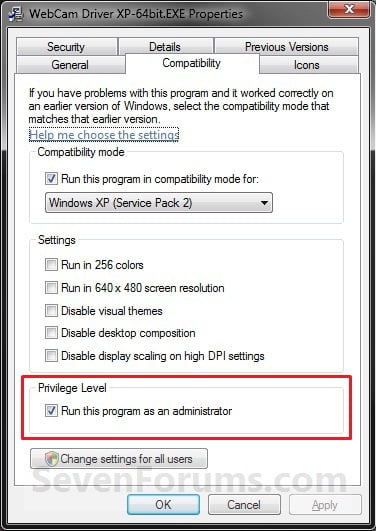
6. To Change the Privilege Level of a Program:
NOTE: Runs the program as an administrator. Some programs require administrator privileges to run properly. If you are not currently logged on as an administrator, this option is not available.
A) Check or uncheck the Run this program as an administrator box to enable or disable this option. (see screenshot below)
7. To Change All of These Settings Above for All Users:
NOTE: Lets you choose settings that will apply to all users on this computer.
A) Click on the Change settings for all users button. (See screenshot below)
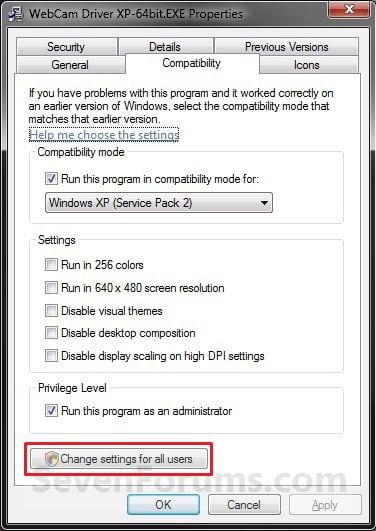
B) Repeat steps 4, 5, and 6 in this window to apply them to all users on the computer. (see screenshot below)
C) Click on OK.
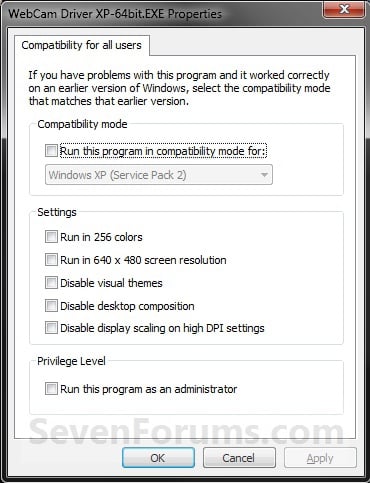
8. Click on OK to apply the changes.
p/s this will help some users who had to install drivers/programs on Windows which is x incompatible...
Source
...All About My Brain...
If changing the Compatibility settings does not fix the problem, go to the program manufacturer's website to see if there is an update for the program.
To see if your software is compatible with Windows 7, check it here: Windows 7 Compatibility Center home
Do not use Compatibility mode on older antivirus programs, disk utilities, or other system programs because it might cause data loss or create a security risk.
OPTION ONE
1. Right click on the program's shortcut, .exe file, or installation program.
2. Click on Properties.
3. Click on the Compatibility tab. (see screenshot below)
NOTE: If the Compatiblity options are grayed out, then it is a 64 bit program and cannot be changed.
4. To Run a Program in Compatibility Mode:
NOTE: Runs the program using settings from a previous version of Windows. Try this setting if you know the program is designed for (or worked in) a specific previous version of Windows.
A) Check the Run this program in compatibility mode for box. (see screenshot below)
B) Click on the drop down menu arrow and select which version of Windows the program was made for. (see screenshot below)
NOTE: Always pick the latest Windows version the program was written for to have a better chance of it running properly in Windows 7.
MSI files (right screenshot below) will only have the Previous version of Windows option available for it. This option will allow Windows 7 to automatically use the previous version compatibility mode it thinks is best for the MSI file to run properly as. You will not be able to do steps 5 and 6 below.
5. To Change the Settings for a Program:
A) Check or uncheck the settings you want for the program. (see screenshot below)
NOTE: See the table below the screenshot for a description of each setting.
6. To Change the Privilege Level of a Program:
NOTE: Runs the program as an administrator. Some programs require administrator privileges to run properly. If you are not currently logged on as an administrator, this option is not available.
A) Check or uncheck the Run this program as an administrator box to enable or disable this option. (see screenshot below)
7. To Change All of These Settings Above for All Users:
NOTE: Lets you choose settings that will apply to all users on this computer.
A) Click on the Change settings for all users button. (See screenshot below)
B) Repeat steps 4, 5, and 6 in this window to apply them to all users on the computer. (see screenshot below)
C) Click on OK.
8. Click on OK to apply the changes.
p/s this will help some users who had to install drivers/programs on Windows which is x incompatible...
Source
...All About My Brain...
Last edited:


